
如何使用 Nextjs 和 Puppeteer 捕获网页屏幕截图
本篇文章向大家介绍《如何使用 Nextjs 和 Puppeteer 捕获网页屏幕截图》,主要包括,具有一定的参考价值,需要的朋友可以参考一下。
以编程方式捕获网页屏幕截图对于生成预览、创建基于图像的报告等非常有用。在本指南中,我们将构建一个 next.js api 路由,该路由采用 url 并生成 png 屏幕截图。我们的设置使用 puppeteer 和 chrome-aws-lambda 来利用无头 chrome 浏览器,使其多功能且可用于生产。
我们将首先设置一个新的 next.js 项目,并逐步浏览代码以了解 api 如何捕获屏幕截图。
先决条件
- 设置 next.js 应用
- 使用 puppeteer 配置 api 路由
- 为捕获接口创建react组件
- puppeteer 的本地与部署配置说明
开始新的 next.js 项目
- 创建一个新的 next.js 应用程序:
npx create-next-app@latest capture-image-app
cd capture-image-app
- 安装必要的依赖项:
npm install puppeteer puppeteer-core chrome-aws-lambda busboy
第2步:创建生成屏幕截图的api路由
现在,我们将设置一个 api 端点来根据提供的 url 捕获并返回屏幕截图。
在pages/api文件夹中,创建一个名为generate-png.ts的新文件并添加以下代码:
import { nextapirequest, nextapiresponse } from "next";
import busboy, { busboy } from "busboy"; // use busboy for multipart parsing
import chromium from "chrome-aws-lambda";
import puppeteercore from "puppeteer-core"; // import puppeteer-core directly
import puppeteer from "puppeteer"; // import puppeteer directly

// conditional import for puppeteer based on the environment
const puppeteermodule = process.env.node_env === "production" ? puppeteercore : puppeteer;

export const config = {
  api: {
    bodyparser: false, // disable default body parsing to handle raw binary data (blob)
  },
};

const delay = (ms: number): promise => new promise((resolve) => settimeout(resolve, ms));

export default async function handler(
  req: nextapirequest,
  res: nextapiresponse
): promise {
  try {
    if (req.method === "post") {
      const bb: busboy = busboy({ headers: req.headers });
      let width: number = 1920; // default width
      let height: number = 0; // default height
      let delaytime: number = 6000;
      const buffers: buffer[] = [];

      bb.on("file", (_name: string, file: nodejs.readablestream) => {
        file.on("data", (data: buffer) => buffers.push(data));
      });

      bb.on("field", (name: string, value: string) => {
        if (name === "width") width = parseint(value, 10) || 1920;
        if (name === "height") height = parseint(value, 10) || 0;
        if (name === "delay") delaytime = parseint(value, 10) || 6000;
      });

      bb.on("finish", async () => {
        const blobbuffer: buffer = buffer.concat(buffers);
        const htmlcontent: string = blobbuffer.tostring("utf-8");

        const browser = await puppeteermodule.launch({
          args: ["--start-maximized"],
          executablepath: process.env.node_env === "production"
            ? await chromium.executablepath || "/usr/bin/chromium-browser"
            : undefined,  // no custom executable path needed for local
          headless: true,
        });

        const page = await browser.newpage();

        // load the html content directly
        await page.setcontent(htmlcontent, { waituntil: "networkidle0" });

        //@ts-expect-error todo
        const bodyheight = await page.evaluate(() => {
          return document.body.scrollheight; // get the full scrollable height of the body
        });

        await page.setviewport({
          width: number(width),
          height: height || bodyheight, // use the provided height or fallback to the full body height
          devicescalefactor: 2,
        });

        await delay(delaytime);

        const screenshotbuffer = await page.screenshot({
          fullpage: !height,
          type: "png",
          omitbackground: false,
        });

        await browser.close();

        res.setheader("content-type", "image/png");
        res.setheader(
          "content-disposition",
          "attachment; filename=screenshot.png"
        );
        res.status(200).end(screenshotbuffer);
      });

      req.pipe(bb); // pipe the request stream to busboy
    } else {
      res.setheader("allow", ["post"]);
      res.status(405).end(`method ${req.method} not allowed`);
    }
  } catch (error) {
    console.error("error", error);
    res.status(500).end("internal server error");
  }
}
*说明:为本地环境和生产环境选择 puppeteer
*
在此代码中,我们为 puppeteer 设置了动态导入:
本地开发:如果 node_env 不是生产环境,它会使用 puppeteer,它设置起来更简单,并且不需要 chrome-aws-lambda。
生产:对于无服务器部署,环境将检测 node_env 作为生产并加载 puppeteer-core 以及 chrome-aws-lambda,这使得它可以在 aws lambda 和其他类似环境中工作。在此设置中,chrome-aws-lambda 提供正确的 chromium 路径,确保与无服务器提供商的兼容性。
第 3 步:为 ui 创建一个简单的 react 组件
在这里,我们将创建一个简单的表单,让用户输入网页捕获的值。此表单将触发生成功能以捕获并下载 pdf 格式的屏幕截图。
import { useState } from "react";
export default function ScreenCaptureComponent() {
const [isProcessing, setProcessing] = useState(false);
const [width, setWidth] = useState("1920");
const [height, setHeight] = useState("1000");
const [delay, setDelay] = useState("6000");
// Function to clone HTML and prepare for capture
function takeScreenshot() {
const clonedElement = document.body.cloneNode(true) as HTMLElement;
const blob = new Blob([clonedElement.outerHTML], { type: "text/html" });
return blob;
}
// Function to capture screenshot by sending cloned HTML to API
async function generateCapture() {
setProcessing(true);
const htmlBlob = takeScreenshot();
if (!htmlBlob) {
setProcessing(false);
return;
}
try {
const formData = new FormData();
formData.append("file", htmlBlob);
formData.append("width", width);
formData.append("height", height);
formData.append("delay", delay);
const response = await fetch("/api/generate-png", {
method: "POST",
body: formData,
});
if (!response.ok) throw new Error("Capture failed");
const blob = await response.blob();
const downloadUrl = URL.createObjectURL(blob);
const link = document.createElement("a");
link.href = downloadUrl;
link.download = "capture.png";
link.click();
URL.revokeObjectURL(downloadUrl);
} catch (error) {
console.error("Failed to capture screenshot", error);
} finally {
setProcessing(false);
}
}
return (
Webpage Screenshot Capture
{/* Example HTML Element to Capture */}
Content to Capture
This is an example of the HTML content that will be captured.
);
}
结论
本教程涵盖在 next.js 中设置网页捕获工具、使用 puppeteer 处理屏幕截图以及创建交互式前端组件。请记住在本地使用 puppeteer 并在生产中切换到 puppeteer-core,以减少捆绑包大小并优化无服务器环境。快乐编码!
到这里,我们也就讲完了《如何使用 Nextjs 和 Puppeteer 捕获网页屏幕截图》的内容了。个人认为,基础知识的学习和巩固,是为了更好的将其运用到项目中,欢迎关注golang学习网公众号,带你了解更多关于的知识点!
 如何获取ng-zorro菜单中被点击项的特定信息?
- 上一篇
- 如何获取ng-zorro菜单中被点击项的特定信息?
- 下一篇
- MySQL 删除数据时何时会走联合索引?
-
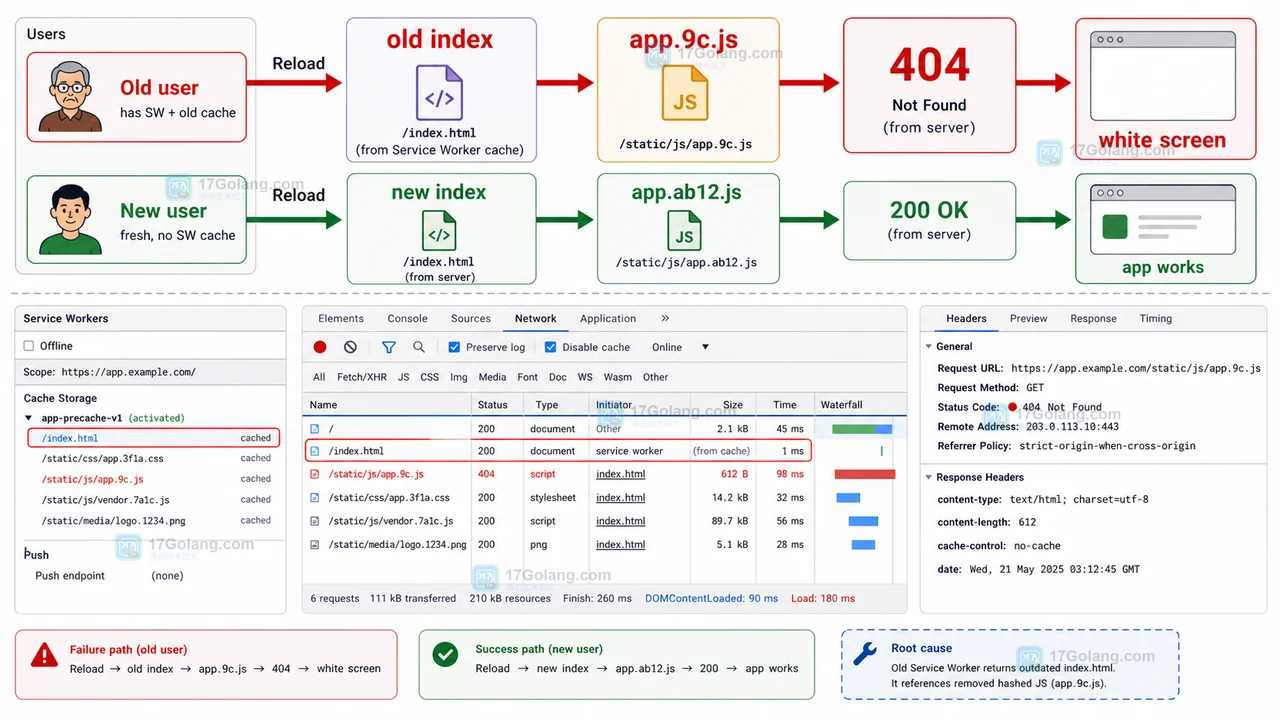
- 文章 · 前端 | 10小时前 | 前端 · 缓存 · Service Worker · 白屏 · 发布故障 · 缓存策略 前端白屏 Service Worker CacheStorage 资源404 发布回滚
- 前端发布后白屏复盘:Service Worker 缓存旧入口导致 JS 资源 404
- 469浏览 收藏
-
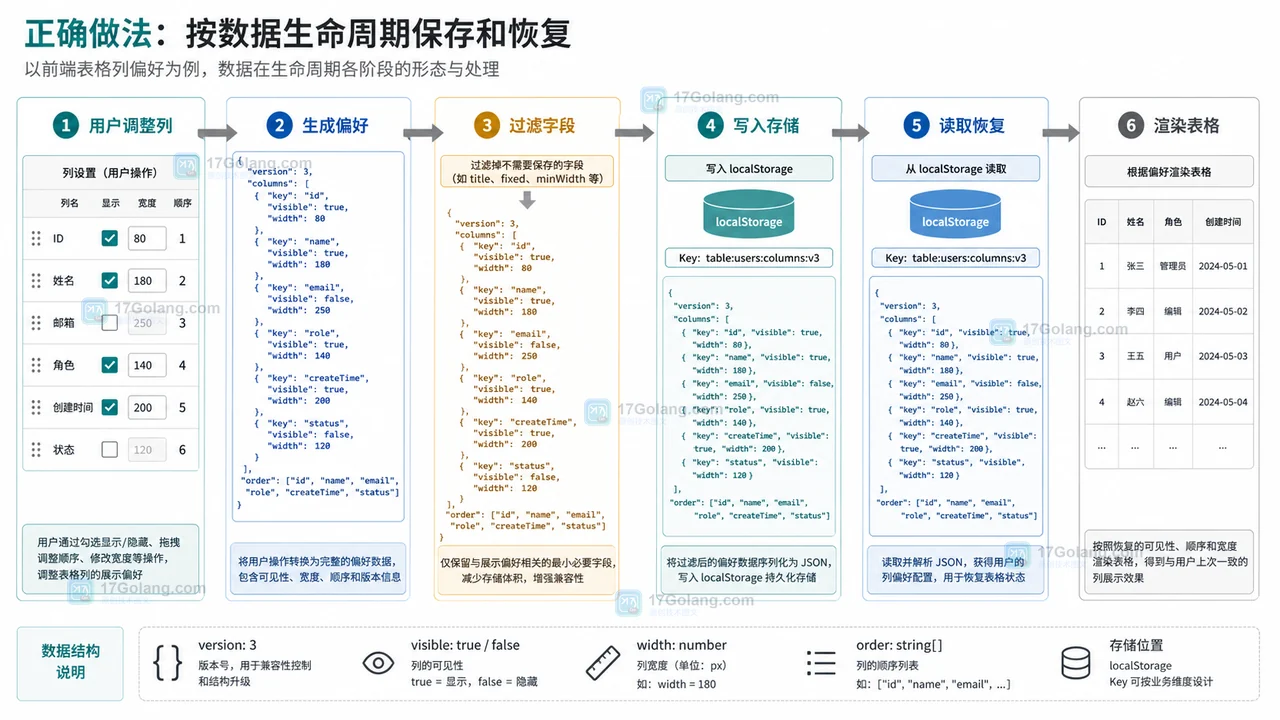
- 文章 · 前端 | 1天前 | 前端开发 · localStorage · 表格配置 · 用户偏好 · 后台系统 · 用户偏好 localStorage 前端表格 列配置 可见列 列宽保存
- 前端表格列设置刷新后丢失怎么办:可见列、列宽和顺序这样保存
- 351浏览 收藏
-
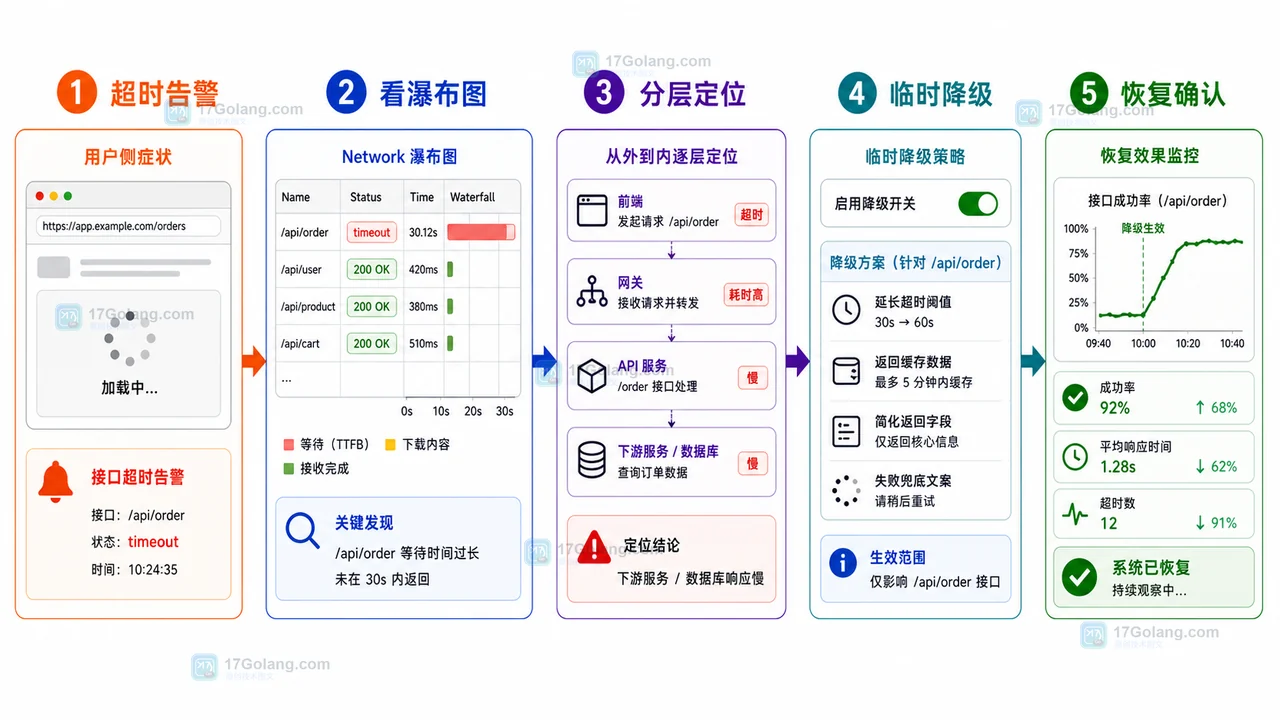
- 文章 · 前端 | 1天前 | 前端 · 接口排查 · 运维手册 · 性能告警 · 前端 AbortController 接口超时 Network瀑布图 降级回滚 线上告警
- 前端接口超时告警运行手册:从瀑布图到降级回滚
- 287浏览 收藏
-

- 前端进阶之JavaScript设计模式
- 设计模式是开发人员在软件开发过程中面临一般问题时的解决方案,代表了最佳的实践。本课程的主打内容包括JS常见设计模式以及具体应用场景,打造一站式知识长龙服务,适合有JS基础的同学学习。
- 543次学习
-

- GO语言核心编程课程
- 本课程采用真实案例,全面具体可落地,从理论到实践,一步一步将GO核心编程技术、编程思想、底层实现融会贯通,使学习者贴近时代脉搏,做IT互联网时代的弄潮儿。
- 516次学习
-

- 简单聊聊mysql8与网络通信
- 如有问题加微信:Le-studyg;在课程中,我们将首先介绍MySQL8的新特性,包括性能优化、安全增强、新数据类型等,帮助学生快速熟悉MySQL8的最新功能。接着,我们将深入解析MySQL的网络通信机制,包括协议、连接管理、数据传输等,让
- 500次学习
-

- JavaScript正则表达式基础与实战
- 在任何一门编程语言中,正则表达式,都是一项重要的知识,它提供了高效的字符串匹配与捕获机制,可以极大的简化程序设计。
- 487次学习
-

- 从零制作响应式网站—Grid布局
- 本系列教程将展示从零制作一个假想的网络科技公司官网,分为导航,轮播,关于我们,成功案例,服务流程,团队介绍,数据部分,公司动态,底部信息等内容区块。网站整体采用CSSGrid布局,支持响应式,有流畅过渡和展现动画。
- 485次学习
-

- ljg-skills
- ljg-skills 是李继刚开源的 AI 技能与提示词集合,面向大模型使用者整理了一批可复用的 prompt、角色设定和任务技能模板,适合用于学习提示词设计、搭建个人 AI 工作流和沉淀团队常用智能体能力。
- 3024次使用
-

- MELO音乐
- MELO音乐是一站式AI视频与音乐制作助手,对标suno, udio的高品质体验。提供伴奏生成、原创写词、无损导出、哼唱识曲、混音变声等全套音频与短视频编辑工具。无论是流行Kpop、电音说唱、民谣古风、摇滚儿歌还是商用轻音乐,MELO为你免费谱曲,轻松做同款!
- 2790次使用
-

- UniScribe
- UniScribe 是一款 AI 音视频转文字与内容整理工具,支持上传音频、视频文件或粘贴 YouTube 链接,自动生成转写文本、摘要、思维导图和关键问题,并支持多格式导出,适合会议记录、课程学习、访谈整理和内容创作复盘。
- 2729次使用
-

- 剧云
- 剧云是专业中文剧本创作平台,安全稳定运行十余年,集成AI编剧、剧本医生审核、人物小传、剧情关系图、大纲编写、多人协作、Word导入导出、版权管控功能,数据安全防护,轻松高效创作剧本。
- 2954次使用
-

- 万象有声
- 万象有声,一个专为有声创作者打造的新一代智能有声内容创作平台。平台提供专业的智能拆章、智能画本编辑、AI配音、AI生成音效、后期制作、智能对轨、智能审听等有声创作全流程工具,可以帮助创作者高效、低成本创作出引人入胜的有声作品。立即体验,让有声书制作更简单!
- 2907次使用
-
- JavaScript函数定义及示例详解
- 2025-05-11 502浏览
-
- CSS变量简化按钮悬停效果技巧
- 2026-05-31 501浏览
-
- JavaScript符号类型详解与应用
- 2026-05-31 501浏览
-
- HTML剪贴板复制粘贴怎么用
- 2026-05-26 501浏览
-
- data-*属性详解:HTML数据存储与DOM操作技巧
- 2026-05-25 501浏览


